Clean Up Your Android TV with Claude Code
Turn a cluttered TV home screen into a simple place for your favorite apps. Explore Gathin’s CleanYourTV project, what Claude Code helps with, and how to try it on a compatible TV.
Case study by HowAI · Reviewed
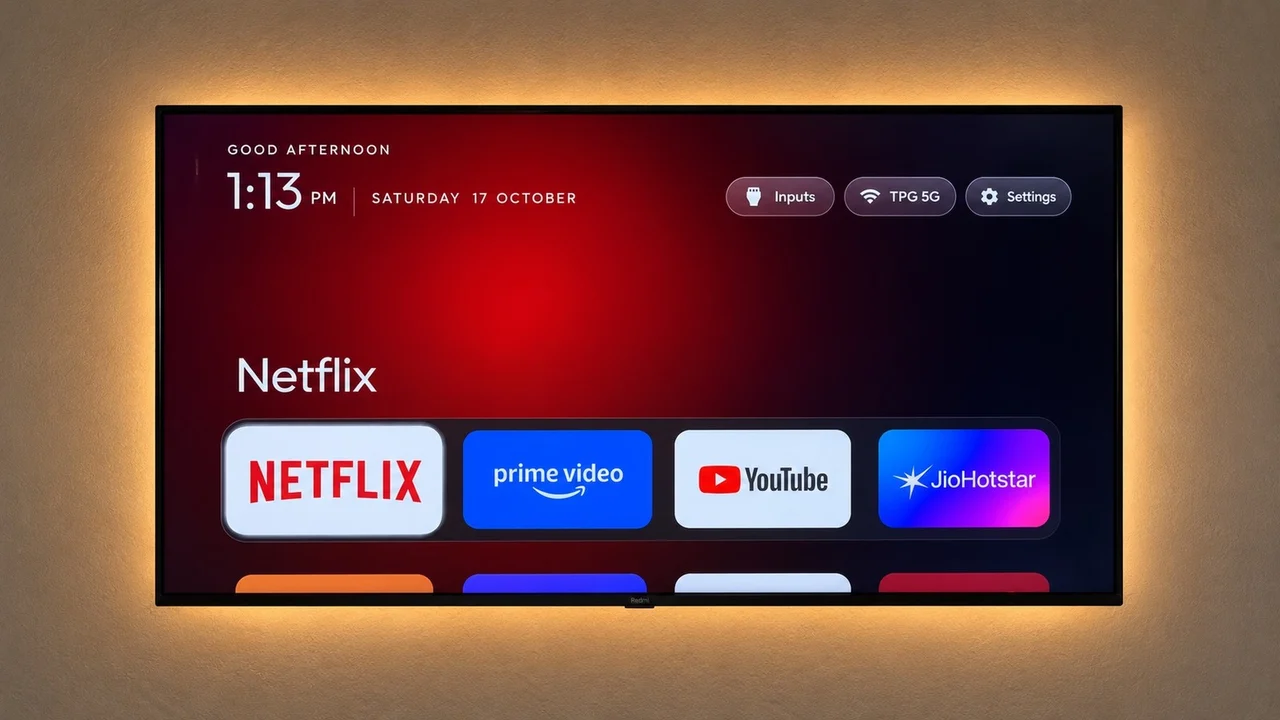
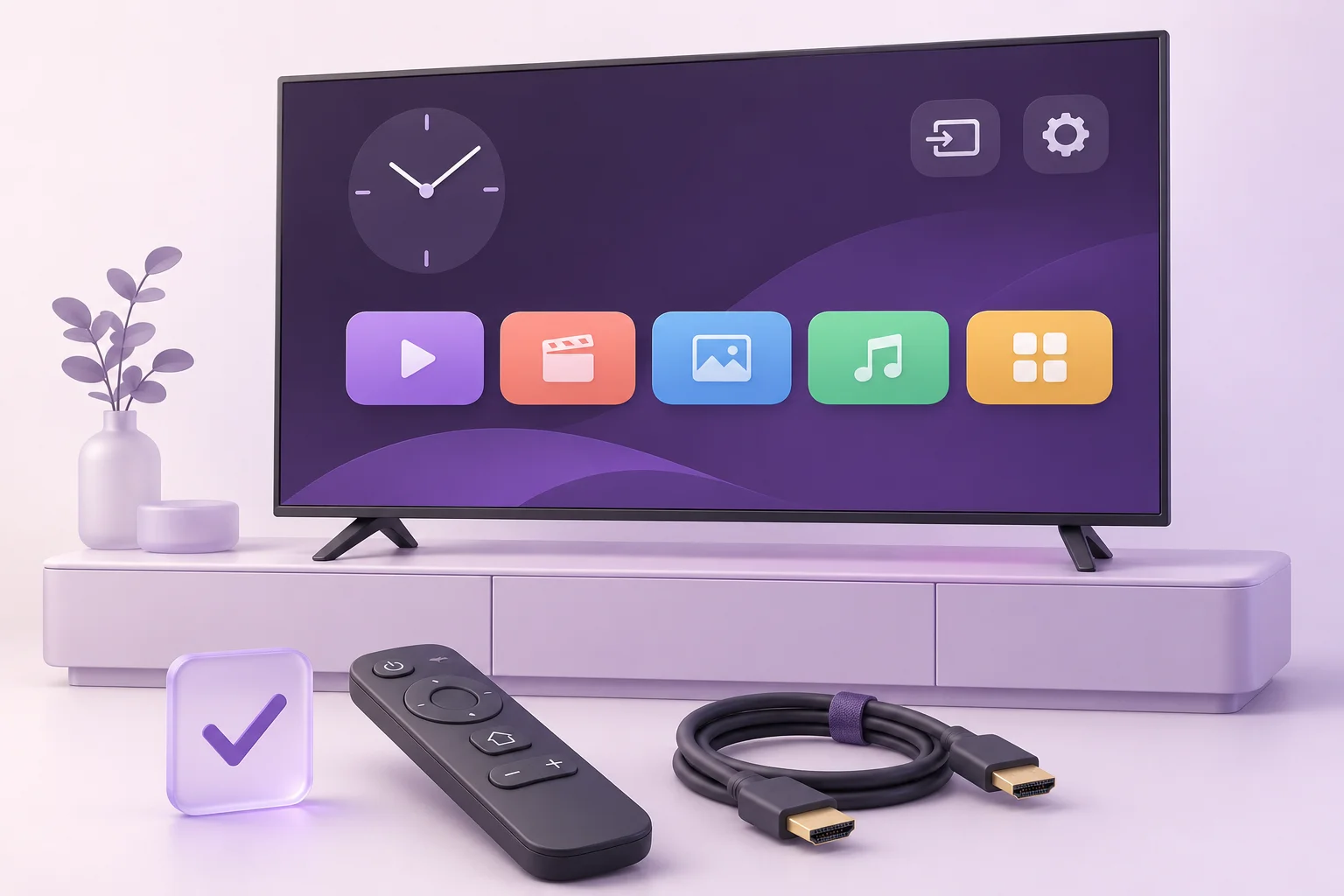
Your favorite apps, a clock, and quick access to inputs and settings.
The problem & the result
Less clutter. Straight to your apps.
Gathin wanted his parents’ TV to open into the apps they actually used. Sponsored banners and recommendation rows got in the way. He used Claude Code to help create a cleaner home screen, then shared the project so others could adapt it to their TVs.
What you’re installing
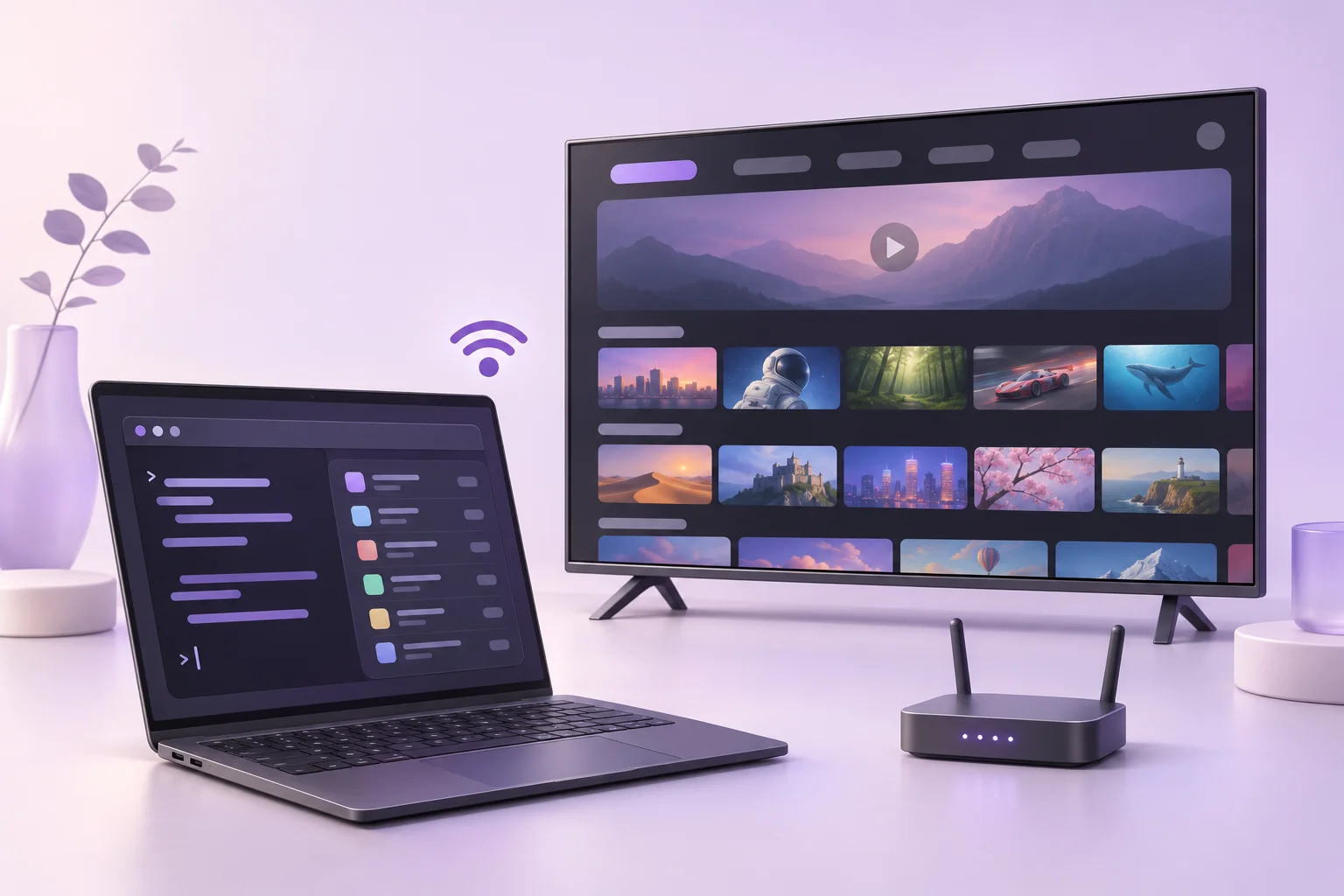
CleanYourTV pairs a native Android launcher with scripts for disabling selected preinstalled software. A coding agent follows the project’s instructions and connects to the TV through Android Debug Bridge (ADB), with the owner approving access and changes.
A home screen centered on your apps
The original sponsored banner and recommendation rows give way to a clock, favorite apps, and direct access to inputs and settings.
A cleanup tailored to the device
Package lists vary by manufacturer. The agent inspects the installed software and uses the project’s device information to propose changes.
A record of what changed
The workflow backs up settings and records disabled packages so the provided restore tools can undo the changes.
What Changes on the TV?
The author’s photos show the same TV before and after. Here is what they demonstrate, alongside what the project documentation describes.
| Change | Evidence and limits |
|---|---|
| Home screen | The original photo shows sponsored content and recommendations. The after photo shows a clock, favorite apps, and input shortcuts. |
| Preinstalled apps | The workflow disables selected packages for the user profile. The photos alone do not show which packages were changed. |
| Ads inside streaming apps | Replacing the launcher changes the home screen. It does not remove YouTube ads or guarantee ad-free streaming apps. |
| Restoring the TV | Keep the generated backups and restore instructions. The TV must remain accessible; a factory reset may be needed if it cannot start, erasing personal apps and accounts. |
| Speed | No measured before-and-after timing is provided here. A cleaner layout is visible; a performance gain has not been verified by HowAI. |
Is This Project for You?
Check these three things before you start.
A compatible TV
The full workflow targets Android TV and Google TV. Check your model and firmware in the project’s device list first.
Samsung Tizen, LG webOS, Roku, and VIDAA use different systems.
A computer on the same Wi-Fi
Use a coding agent with terminal access. The documented build setup uses Python 3, Java, and Android build tools.
You’ll need to enable debugging and approve the connection on the TV.
Time to supervise and test
Be comfortable reviewing commands and device settings. Decide which features to keep, then test them after setup.
The code is MIT-licensed; your AI provider may charge separately.
What AI Does, Step by Step
The author used Claude Code. The shared prompt turns that approach into a supervised workflow you can adapt to your own TV.
Step 01
Inspect the TV
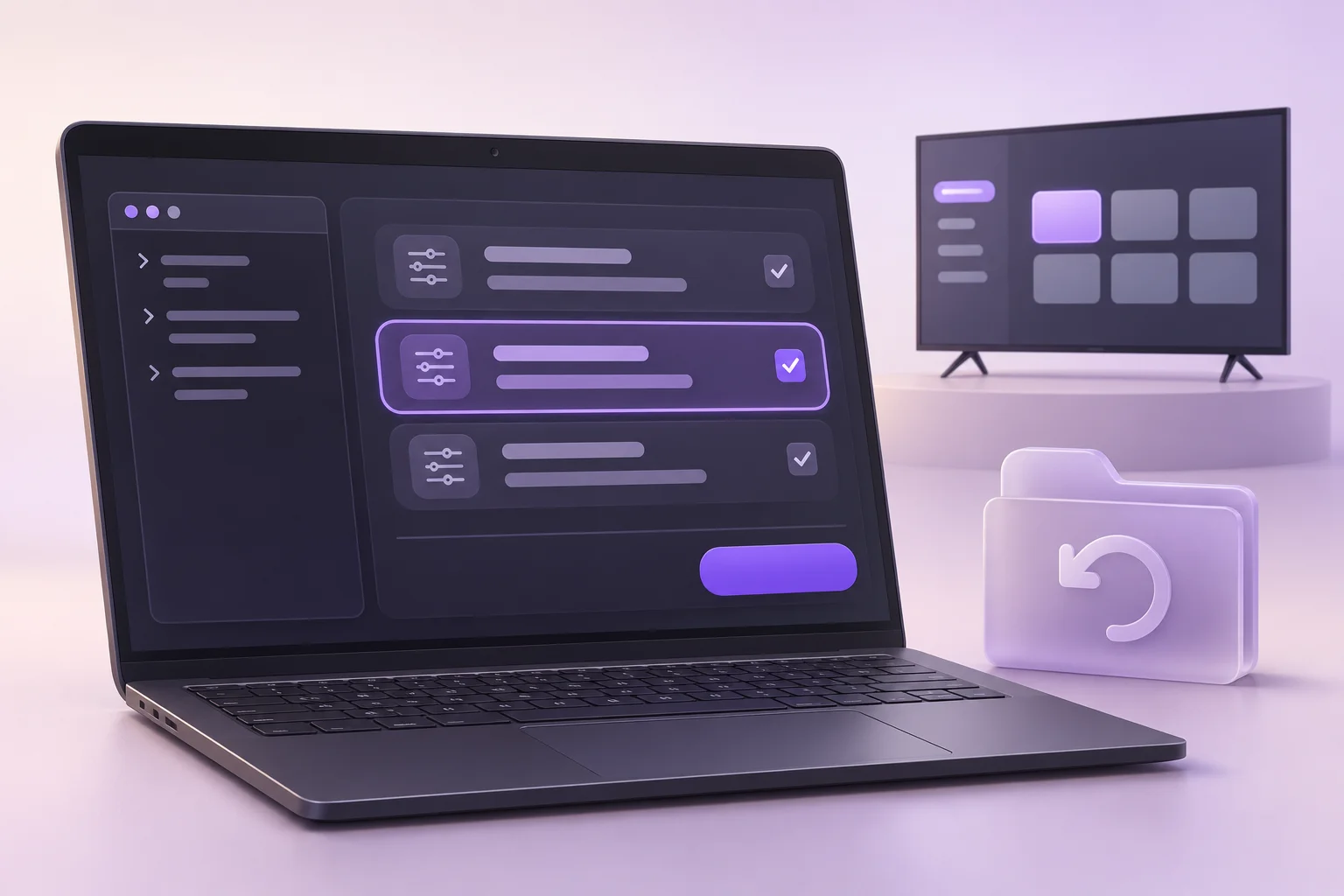
Claude Code inspects installed apps and services, checks the project’s device information, and proposes what to keep or disable.
Your part Choose the apps, casting features, and voice controls you want to keep.
Step 02
Apply the changes
The agent uses the project’s scripts to back up settings, disable approved packages, and build and install the new launcher.
Your part Approve the plan before changes run, and keep a copy of the backup.
Step 03
Check the result
The agent captures screenshots to check the new home screen. Once installed, the launcher works without an ongoing AI session.
Your part Test the remote, HDMI inputs, streaming apps, and everyday features on the TV.
Make It Your Own
Start with the original setup guide. These four steps show the path from checking your model to testing the finished TV.
- 1
Check your TV and prepare the computer
Look up your model in the project’s TV list. The full launcher workflow targets Android TV and Google TV. The documented computer setup uses Python 3, Java, and Android build tools to build the launcher.
Check devices and setup requirements - 2
Connect and approve access
Put the computer and TV on the same Wi-Fi network, enable the TV’s debugging option, and accept its connection prompt. Open the cloned repository in Claude Code or another coding agent with terminal access.
Watch the connection walkthroughs - 3
Give the agent the project prompt
Fill in your model in PROMPT.md. Review its proposed changes and tell it which streaming apps, casting features, voice controls, and update services you use.
Open the original prompt - 4
Test everyday use and close debugging
Check the Home button, remote, HDMI inputs, streaming apps, and any casting features you kept. Save the backup and restore instructions. Follow the project’s checks to turn debugging off once setup is complete.
Read the recovery guidance
Watch the Process on Real TVs
Follow a creator’s setup before trying your own. Watch each walkthrough directly on YouTube; results depend on the device.


Frequently Asked Questions
Compatibility, costs, and what to expect before you start.
About this case
Explore the Original Project
Project by Gathin · Case study by HowAI
Compiled by HowAI from Gathin’s project documentation, author photos, and linked community tutorials. We haven’t independently tested the TV setup. The photos show the home-screen change, not a measured speed improvement.