Turn an Old Kindle into a Weather Clock with AI
Turn an unused Kindle into a clock and weather display you can check on your way out. Explore how Claude helped its owner build a new use for an old screen, and what it takes to try it yourself.
Case study by HowAI · Reviewed
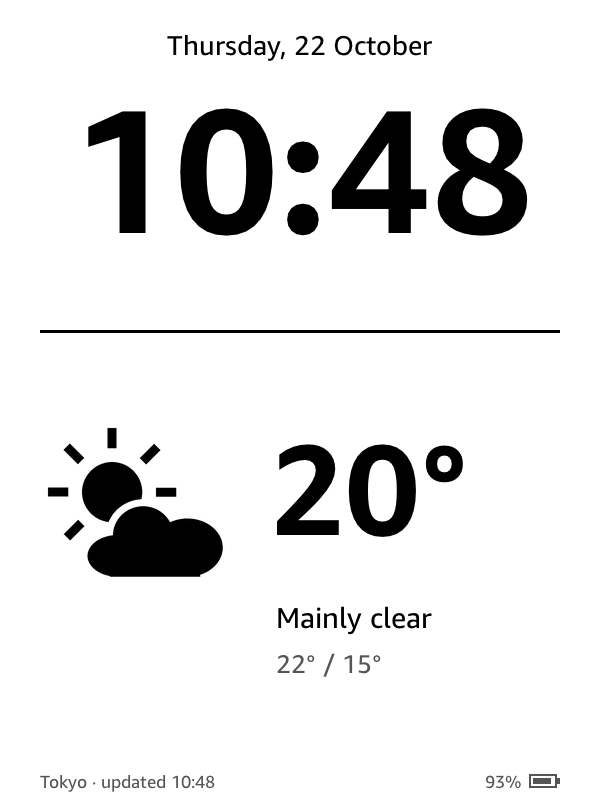
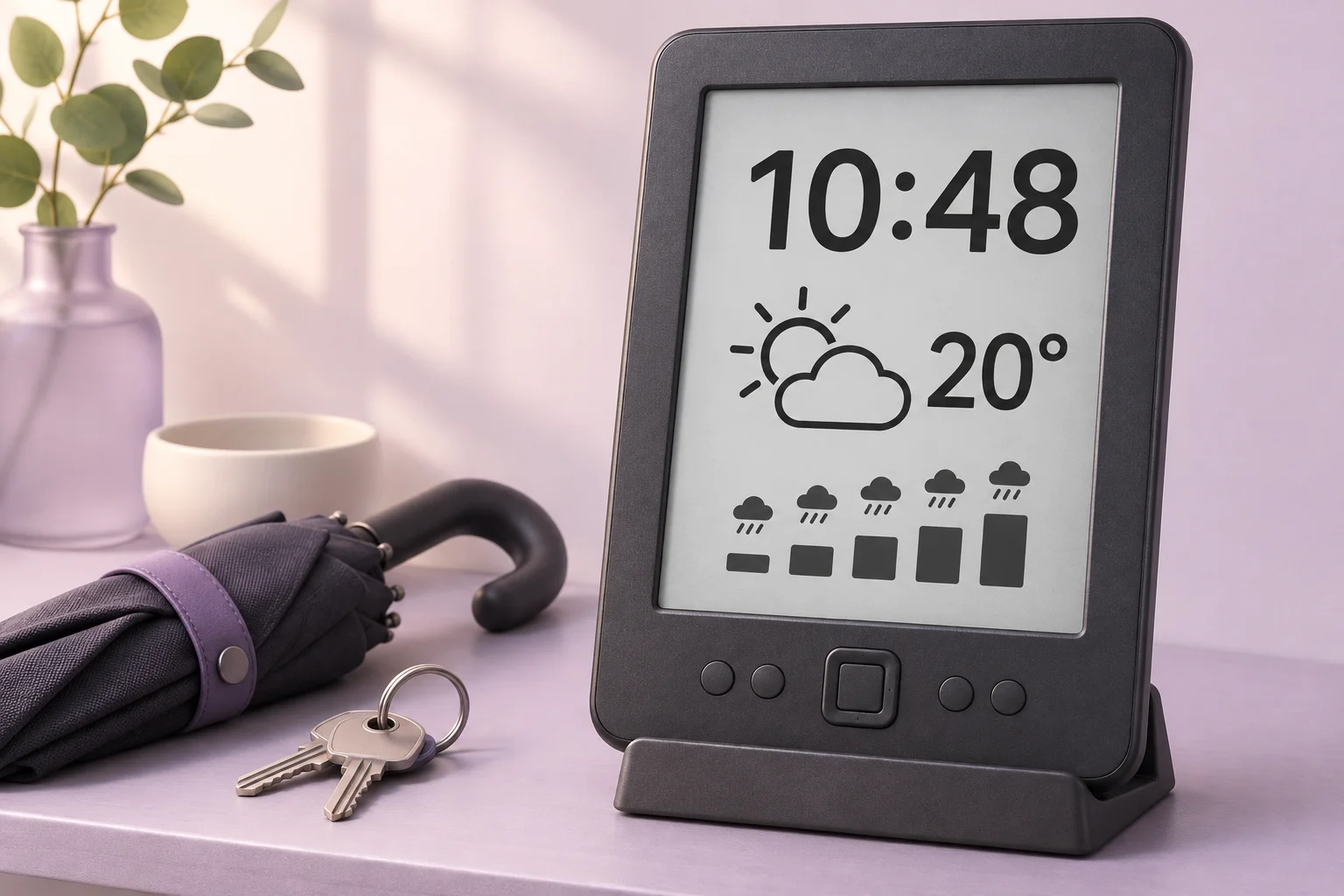
The project’s everyday dashboard: time, local weather, and the next forecast at a glance.
The problem & the result
From an unused reader to a daily weather check.
The author described a Kindle bought more than a decade ago whose touchscreen was barely working. Inspired by people modifying Android TVs, they asked Claude for a clock and weather dashboard: something the family could glance at before deciding whether to take an umbrella.
What runs on the Kindle
rekindle runs a small dashboard directly on a jailbroken Kindle. It uses shell scripts and FBInk to draw on the e-ink screen, and Open-Meteo for weather. A computer is used for setup; a separate always-on server is not required.
A new purpose for an existing screen
The device becomes a household information display. The power button exits the dashboard and returns to the normal Kindle interface.
Weather without unlocking a phone
A large clock, current conditions, and a rain chart put the useful information on one screen. Rain details appear when rain is expected.
A documented path to repeat it
Setup scripts, model coverage, and troubleshooting notes explain each checkpoint. Compatibility still depends on the exact device and firmware.
Which Kindles Are Covered?
Coverage reported by the project’s setup guide. HowAI has reviewed the documentation but has not installed the dashboard on hardware.
| Device or setup | Documented coverage |
|---|---|
| Kindle 7th gen (KT2), firmware 5.8.11 + macOS | The author’s end-to-end tested reference setup. |
| Other listed K5 models, firmware 5.6.1.1–5.10.x | Expected to work, but not hardware-tested by the author. Check the guide for your exact model and required tools. |
| Firmware 5.11–5.16.2 | Requires an additional manual step to block updates; the setup script does not automate it. |
| Firmware 5.16.3 and newer | Outside this project’s documented setup coverage. |
| Computer and network | macOS is the documented host. Linux is untested; the supplied scripts do not support Windows. Older Kindles need 2.4 GHz Wi-Fi. |
Is This Project for You?
Check these three things before you start.
A supported Kindle and firmware
The author tested a Kindle 7th gen (KT2) running firmware 5.8.11. Other models listed in the guide have not all been tested on hardware.
Firmware 5.11–5.16.2 needs extra steps; 5.16.3 and newer is outside this project’s documented coverage.
A Mac, USB cable, and Wi-Fi
The scripts are documented for macOS. You need a USB connection for early setup and a 2.4 GHz Wi-Fi network for the older Kindle.
Linux is untested. The supplied scripts do not support Windows.
Comfort with device modification
This includes jailbreaking, manual restarts, and SSH access. Back up books and read the full guide before starting.
The code is MIT-licensed. Claude access may cost extra, and device modification can require recovery if it goes wrong.
What AI Does, Step by Step
Claude helped the author get the project working. The repository now packages that process into scripts and agent instructions, with device actions and final checks left to you.
Step 01
Work out what the old device can do
The owner asked Claude to turn an aging Kindle into a weather clock. The shared agent instructions start by checking the model, firmware, computer, and network before choosing a setup path.
Your part Read the model and firmware on your Kindle. Confirm that the guide covers them before changing the device.
Step 02
Guide the setup, one checkpoint at a time
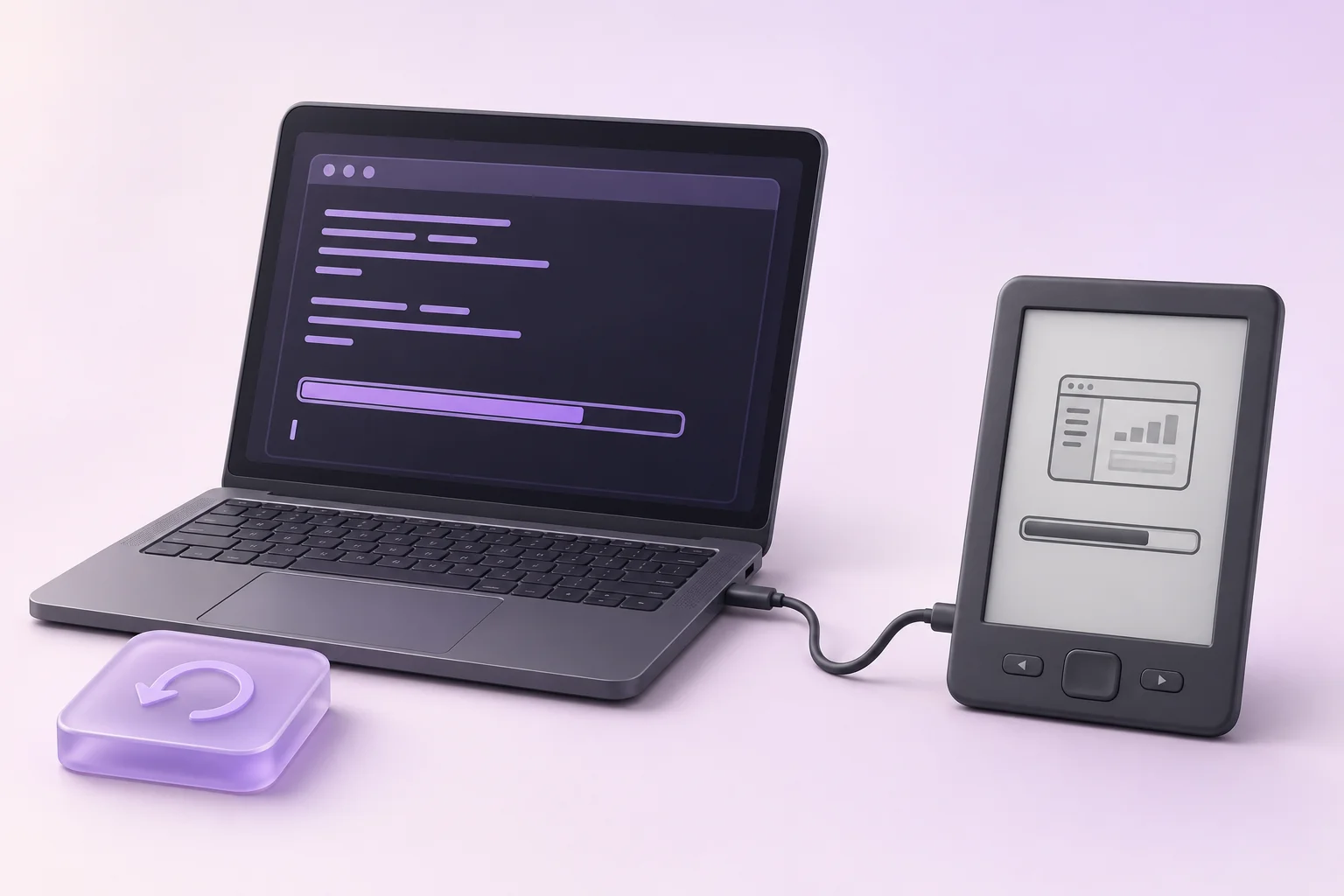
The project gives the agent scripts to prepare files, set up SSH access, and deploy the dashboard. The guide separates computer commands from actions that must happen on the Kindle.
Your part Back up your books, review commands, and perform the device-side taps and restarts. Jailbreaking is a hands-on step.
Step 03
Make the display useful where you live
Configure your location and timezone, then check the screen and clock updates. Once installed, the dashboard fetches weather and draws the screen itself; it does not need a continuing Claude session.
Your part Check the displayed time and place, try the rain view, and confirm that the power button returns to the reading interface.
Make It Your Own
Start with the model coverage table in the original guide. The steps below outline the process; use the author’s instructions for the exact commands.
- 1
Identify the Kindle and back up your books
Read Device Info for the model and firmware. Compare them with the guide’s coverage table and save any books you want to keep before preparing the device.
Check model and firmware coverage - 2
Follow the jailbreak and tool setup
Clone the repository and follow its staged setup. The computer prepares the files, while you perform the specified taps, updates, and restarts on the Kindle.
Follow the step-by-step guide - 3
Connect and set your location
Follow the SSH setup, then edit the dashboard configuration with your coordinates, place name, and both timezone settings. Deploy using the project’s script.
Read the dashboard configuration - 4
Test the display and normal reading
Start the dashboard from KUAL. Confirm that the time advances, weather updates, and the power button exits to the Kindle interface. Use the troubleshooting guide if a checkpoint fails.
Open troubleshooting notes
Follow the Original Build
Read the author’s story, check the hardware requirements, and use the documented setup path.
Frequently Asked Questions
Compatibility, costs, and what to expect before you start.
About this case
Explore the Original Project
Project by Chaozhuang22 · Case study by HowAI
Compiled by HowAI from Chaozhuang22’s repository, setup guide, and the author’s original post. Dashboard screenshots come from the repository. We have not installed this on a Kindle or independently measured battery life; compatibility statements are the author’s documented coverage.